
Virtual try-on privacy: body photos, camera, and what to ask
 TryOnAnytime
Practical questions about selfies, live camera sessions, extension permissions and merchant embed keys when you try clothes online — for shoppers and cautious stores.
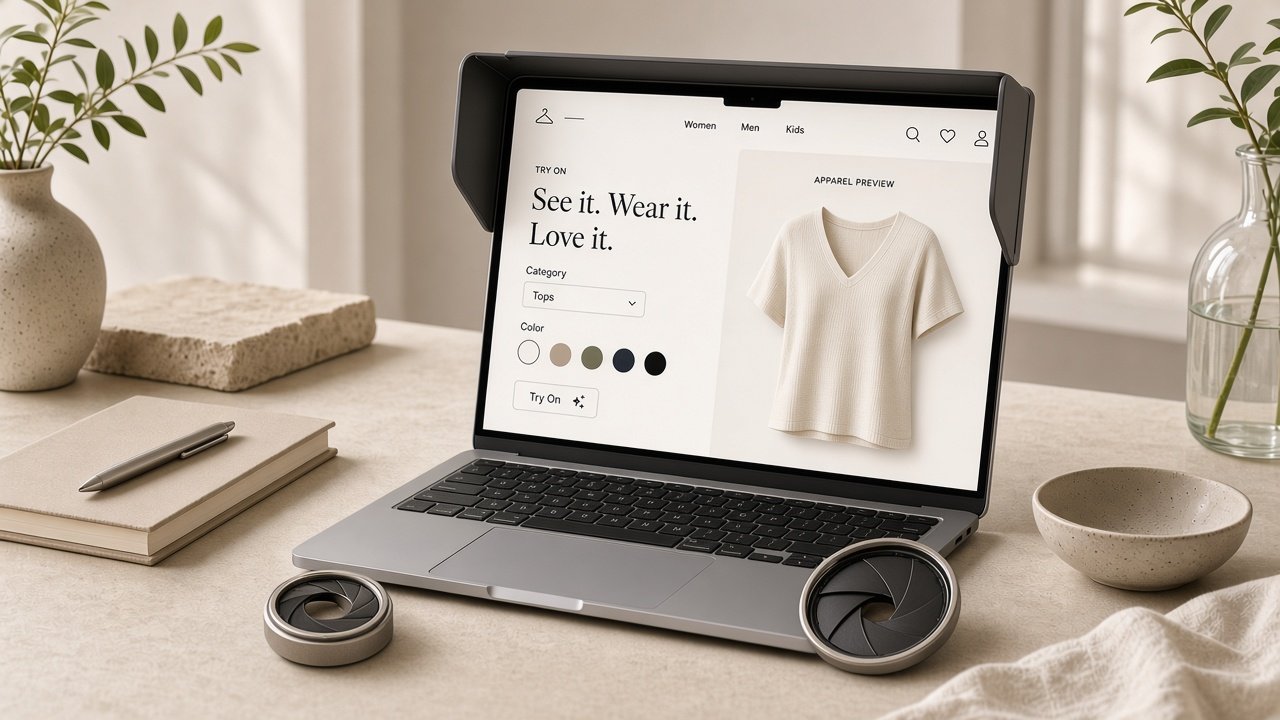
Trying clothes on with AI means the system needs some view of a body: a photo you upload, or a camera stream. Neither should be a black box, and "we take privacy seriously" is not an answer to any question worth asking.
This page is not legal advice. It is the question list worth putting to any try-on product — including this one.
The four questions that decide everything
Whatever the marketing page says, a try-on product's privacy posture comes down to four answers:
- Who receives the image? Your browser only, the vendor's API, or a third-party model host it forwards to?
- How long is it kept? For the session, for account history, for support tickets, or indefinitely?
- Can you delete it? And is deletion one action, or a support email?
- Is it used to train anything? A yes is not automatically disqualifying, but it must be stated before upload, not discovered later.
If a product cannot answer those four in plain language, that is the answer.
The photo path
Uploading a photo is the biggest single disclosure in the whole flow — bigger than a camera session, because a photo persists.
What to check:
- Upload timing. Does the image upload when you open the page, or only when you press generate? Only on generate is the sane default.
- Storage separation. Is the garment image stored alongside the person image, or kept apart?
- History. If the product keeps a history so you can reuse a look, that history is a body photo library. It should be deletable, and it should not be shared by default.
- Bystanders. Photos taken in a bedroom, an office or a shop changing room capture more than you. Crop before uploading, and prefer a plain wall.
In TryOnAnytime, photo try-on runs through the product flow in studio, and signed-in history exists so you can reuse a look without re-uploading yourself. The practical rule stands either way: upload a photo you would be comfortable seeing in your own account later.
The live camera path
A camera session is narrower than a photo in one way and wider in another: it is not stored as a still, but it does point at your room.
- Permission comes from the browser, not the site. Denying it blocks live mode; photo try-on may still work. If the browser has remembered a denial, only site settings can reverse it — a well-built studio says so in the empty state rather than looking broken.
- Treat it like a video call you control. Close the tab when you are done. Do not leave a session open on a second monitor.
- Expect interruptions. Unstable networks break live segments more than photo jobs; that is a reliability issue, not a privacy one, but it is worth knowing — see where try-on struggles.
- Framing is your call. A live session will happily include your doorway, your flatmate and your post.
The extension path
Browser extensions deserve their own paragraph, because they sit between you and every shopping site you visit.
- What a good try-on extension does: keeps the fitting photo in the browser, injects a button on product pages you choose to use, and sends only what is needed to generate a look.
- What to check before installing: the permission list. "Read and change all your data on all websites" is normal for an injection-style extension and also the broadest permission there is — install it only from a source you trust.
- Where this one stands: it is live on the Chrome Web Store, so the install is a normal one-click store install with automatic updates. That also means the permission prompt is the one to actually read: this kind of extension asks to read and change data on the sites you use it on. Installation steps are on /extension, with the reasoning in virtual try-on chrome extension.
- Uninstall what you stop using. Extensions keep their permissions until you remove them, not until you stop clicking the button.
If you run a store: the embed angle
Pasting a try-on widget onto a storefront makes you a data controller for whatever it collects. Two mistakes are common and both are avoidable:
- Putting a secret key in theme code. A publishable key (
pk_…) belongs in the browser; a server key never does. Scope the publishable key to your domains so a copied snippet does not work elsewhere — see merchant embed one-liner. - Shipping the widget without disclosure. One line under the button — when the photo uploads, what is kept, how to delete it — removes most of the anxiety that stops people from tapping at all.
Then decide the boring things deliberately: who is the processor, what is the retention period, what happens to a shopper's photo when they ask you to delete their account. If your privacy policy does not mention try-on at all, it is out of date.
What good disclosure looks like
Short, specific, and placed where the decision happens:
- "Your photo uploads only when you tap Generate."
- "We keep it in your history so you can reuse it; delete it from your account at any time."
- "We do not train models on your photos."
- "This is a visual preview, not a measurement."
Four lines. No policy page required, no legal vocabulary. A product that will not write those four lines has usually not thought about them.
Shopper hygiene, short version
- Use a recent photo you are willing to keep in an account history.
- Keep IDs, children's faces, badges and screens out of frame.
- Read the privacy policy before a bulk upload, not after.
- Uninstall extensions you no longer use.
- Prefer the path that uploads least: if a browser-local flow does the job, use it.
The line we hold
Try-on is a look check. It does not need your measurements, your ID, or a body scan, and any product asking for those to render a shirt is asking for more than the job requires. If a tool wants more than the task needs, that is the signal.
Soft CTA: get comfortable with the permission dialog first, then try a single garment — studio is the shortest path. If you would rather keep the photo in the browser, start at /extension. The homepage lists the rest, and best virtual try-on apps 2026 compares the shapes honestly.